conversion
Feature Details
Please be informed that there are some restrictions on data access.
For detailed information about the file conversion feature,nextYou can check it at.
Right-click menu for files/folders
1. When selecting a single file
| User Screen | content | Note |
|---|---|---|
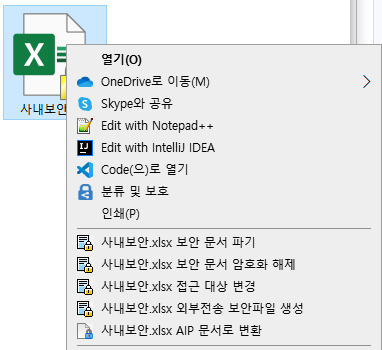 | Single Security Document Right Click | Add menu to convert to MIP document |
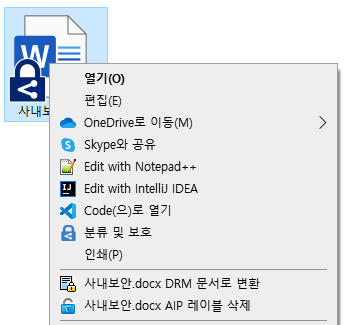 | Right-click on the single MIP document | Add MIP label deletion menu |
2. When selecting multiple files/folders
| User Screen | content | Note |
|---|---|---|
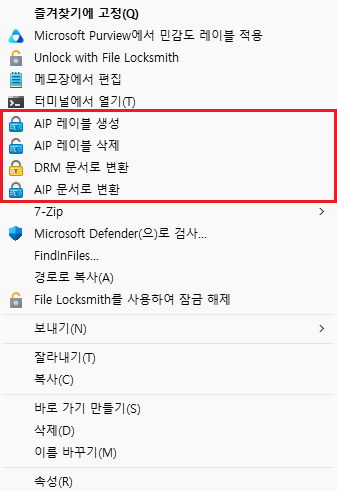 | Multi Folder/File Right Click | Custom Policy (DS_MIP_SHELL_MENU) Settings |
3. Right-click menu execution screen
| User Screen | content | Note |
|---|---|---|
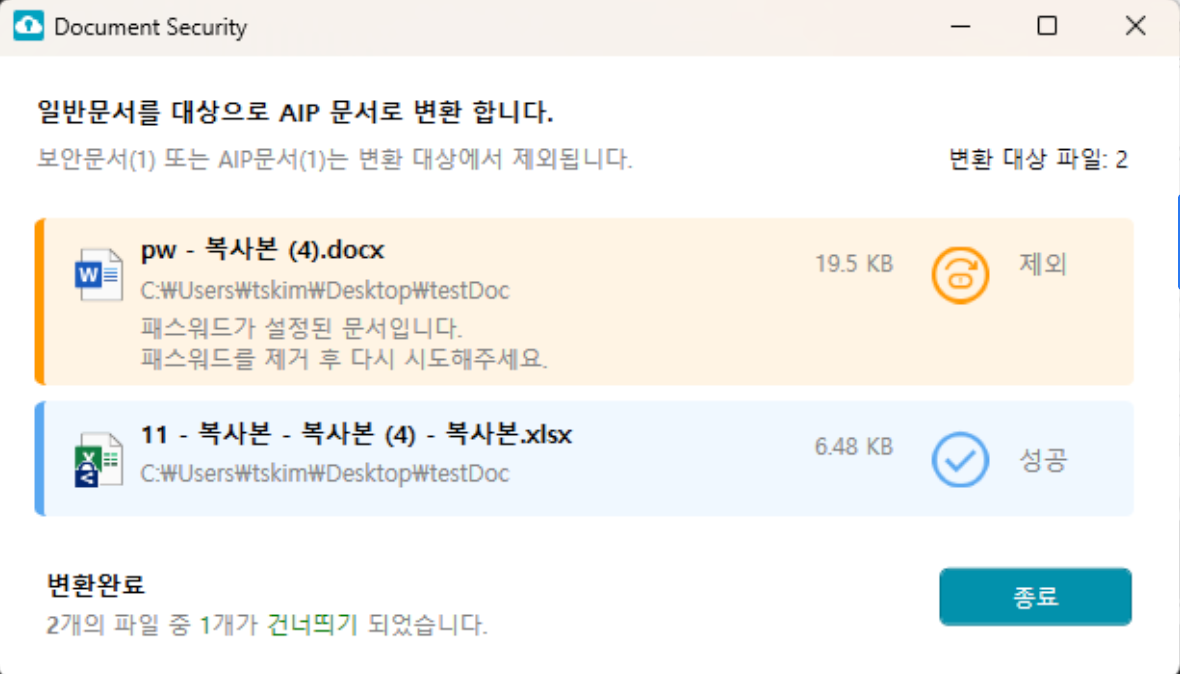 | MIP Label Creation | Target document: General document MIP, security document, general document with password set are excluded from the conversion list. Converted to documents with MIP labels specified according to ZTCAP policy. Integration log: Used. SCI log: Not used. |
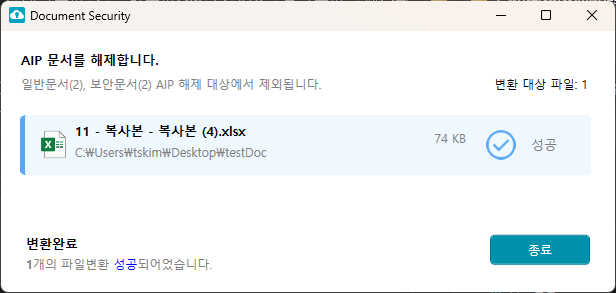 | Delete MIP Label | Target document: MIP General, security documents excluded from the conversion list Custom policy DS_MIP_SHELL_MENU:SHELL_AIP_DELETE when setting, add menu Integrated log: Used SCI log: Not used |
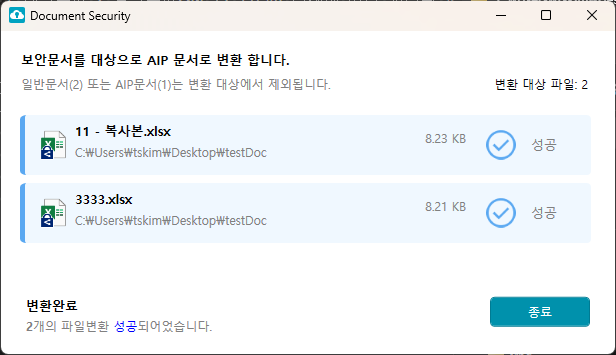 | Convert to MIP document | Target Document: Security Document MIP, general documents are excluded from the conversion list. Converted to MIP labeled documents as specified by ZTCAP policy. Integration Log: Used. SCI Log: Not used (release log of the original security document not sent). |
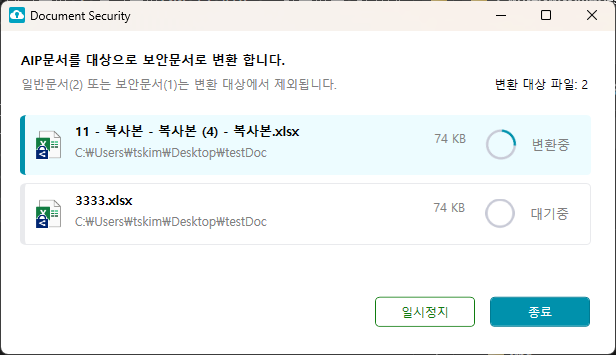 | Convert to DRM document | Target Document: MIP Document General, Security documents are excluded from the conversion list. Converted according to ZTCAP policy designated security documents. Integration log: Use. SCI log: Use (Send log of created converted security documents). |
4. Right-click Menu by Item
Reference
Some items may vary depending on the policy settings.
| division | Detail |
|---|---|
| General Document | •Creating MIP└ MIP, security documents, documents with password protection are excluded from the conversion list •General Document Encryption |
| DRM Document | •Convert to MIP document└ MIP, general documents are excluded from the conversion list • Security document destruction • Security document decryption • Change of access target • Creation of secure files for external transmission |
| MIP Document | •Convert to DRM document└ General, security documents are excluded from the conversion list •Delete MIP Label└ General, security documents are excluded from the conversion list • General document encryption |
| Multi-Select | •MIP Label Creation└ Only general documents are subject to conversion •Delete MIP Label└ MIP document conversion list only •Convert to DRM document└ MIP document is included in the conversion list •Convert to MIP document└ DRM document is included in the conversion list └ MIP, general documents are excluded from the conversion list • General document encryption |
| Folder | •MIP Label Creation└ Only general documents are subject to conversion •Delete MIP Label└ MIP document conversion list only •Convert to DRM document└ MIP document is included in the conversion list •Convert to MIP document└ DRM document corresponds to the conversion list •File Encryption in Folder└ Encrypted Supported Extensions (Localset) •Decryption of files in the folder • Simple Encryption of Files in a Folder└ Unsupported Encryption Extensions (Localset) |
5. (Old) Right-click Menu Execution Screen
If the DS365Agent64.exe file is not present in the C:\Windows\SOFTCAMP\Security365\DS365\x64\ path, perform the action.
| User Screen | content | Note |
|---|---|---|
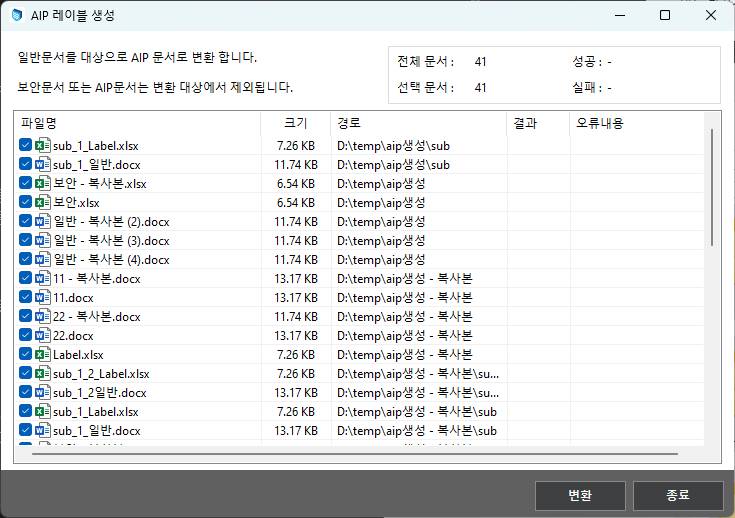 | Create AIP Label | Target Document: General Document Converted to AIP Labeled Document as per ZTCAP Policy Integrated Log: Used SCI Log: Not Used |
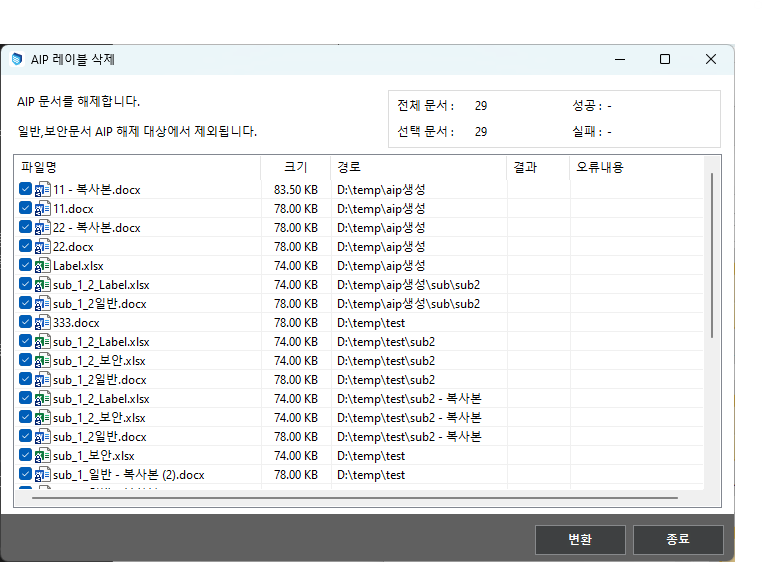 | Delete AIP Label | Target Document: AIP Document Custom Policy DS_MIP_SHELL_MENU:SHELL_AIP_DELETE Adding Menu When Setting Unified Log: Used SCI Log: Not Used |
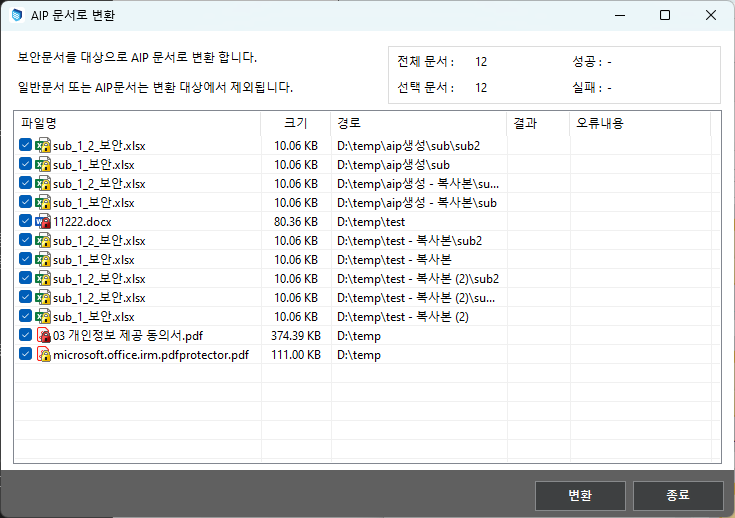 | Convert to AIP document | Target Document: Converted to AIP labeled document as specified by the security document ZTCAP Integrated Log: Used SCI Log: Not used (Release log of the original security document not sent) |
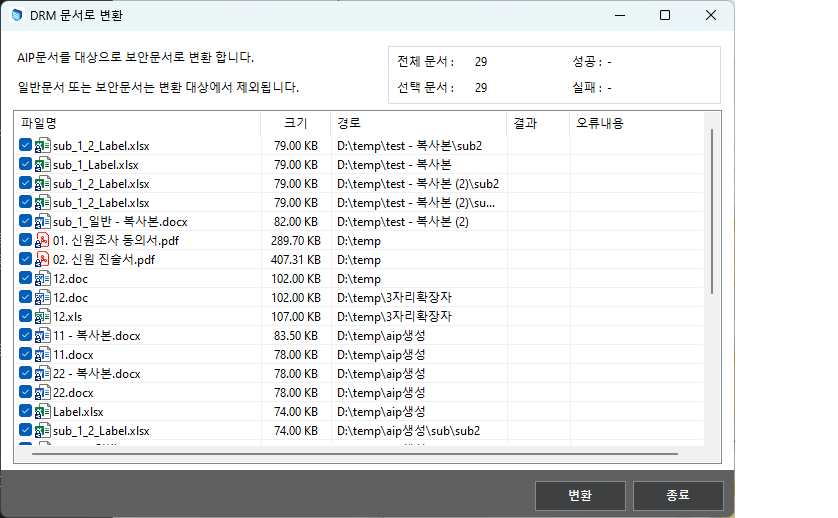 | Convert to DRM document | Target Document: AIP Document Converted to Security Document Designated by ZTCAP Policy Integrated Log: Used SCI Log: Used (Log Transmission of Converted Security Document Creation) |
Owner Retention Feature During MIP Document Conversion
The feature that retains the Owner Id of the original MIP document when converting a MIP document to a DRM document and then back to a MIP document.
1. Overview
When user A creates and has owner rights on a MIP document locally, and user B converts that document to MIP after DRM conversion, the final document is converted to a MIP document with owner rights for user B.
A user ownership feature that ensures user A has owner permissions even if the document is ultimately converted multiple times.
2. Flowchart
3. Other and Limitations
- The user ownerId information of the MIP document is not retained when the MIP is released. When converted to a DRM document, the information is linked.
- ownerId information is included in the DRM document header VFI (DSBSDT_VFI_MIP_OWNER_ID) and can be checked in the secure document header feature in SDSWizard version 6.0.0.13 or higher.
- Currently, in DS 6.0, document conversion uses the access Token issued by the ssevtr app instead of a user token, and that app must have the InformationProtectionPolicy.Read.All permission set in Microsoft Entra ID. This setting must be applied correctly for the ownerId retention feature to function properly.
Cloud Download Document Conversion
Performs conversion functions for documents downloaded from cloud storage.
- The cloud storage subject to the Ztcap policy is
zoneIdentifierIt is determined by a list of URLs. The primary inclusion targets are OneDrive · SharePoint · Teams, and for Google Drive, please refer to section 3-3. - The definition of the conversion method follows the Ztcap policy.
1. Overview
- Provides conversion functionality for documents downloaded from cloud storage (OneDrive, SharePoint, Teams, Google Drive).
- The policy regarding conversion follows the Ztcap policy.
This feature detects the download timing of the browser and Teams app by hooking the ZoneIdentifier (MoTW) record afterDownloadFile_FromCloudEvent), handling file copying between OneDrive/SharePoint sync folders and Google Drive virtual drives.ControlWhen downloading from the 'external storage' of the categoryCopyFileFrom_OneDrive / CopyFileFrom_Sharepoint / CopyFileFrom_GoogleDrive) is a separate feature with a different trigger and path.
The target cloud storage is determined by the policy.
The detection of client downloads is not dependent on a specific cloud domain. By hooking the moment when ZoneIdentifier is recorded in the downloaded file, policy queries are performed, andThe list of zoneIdentifier URLs in the Ztcap policy determines which cloud storage will be considered as the target for conversion.
Therefore, the support for new cloud storage is not a client patch but ratherPolicy URL RegistrationIt is composed of. Google Drive also works the same way when you register the URL through the procedure in section 3-3.
2. Related Custom Policies
This policy value is required. If it is missing, the download timing may not be detected, and the download conversion feature may not work.
HOOK_LOAD_DYNAMICA custom policy must be set for the hooking module to be loaded into the browser and Teams processes to detect the download timing. Detailed policy values such as module injection strings areConversion DetailsManage on the page.
3. Ztcap Policy Related
3-1 Example of decisionFactors queried by ztcap at the Endpoint during function operation
// 단일 문서(docx Mip문서) 다운로드시 문서에 대한 질의 json
{
    "decisionFactors": [
  {
    "category": "document",
    "target": {
      "info": {
        "ext": "docx",
        "zoneIdentifier": "https://softcamp-my.sharepoint.com/personal/jaekwon_lee_softcamp_co_kr/_layouts/15/download.aspx?UniqueId=ed4e27ad%2Dda48%2D476b%2Da99a%2Dd517a54ad6db"
      },
      "type": "mip"
    }
  },
  {
    "category": "storage",
    "target": {
      "info": {
        "folder": "%USERS%\\Downloads"
      },
      "type": "local"
    }
  },
  {
    "category": "fileEvent",
    "target": {
      "info": {
        "event": "DownloadFile_FromCloud"
      },
      "type": "local"
    }
  }
]
}

// 여러문서 선택시 Zip파일에 대한 질의 json
{
    "decisionFactors": [
        {
        "category": "document",
        "target": {
            "info": {
                "ext": "zip",
                ...
                "zoneIdentifier": "https://japaneast1-mediap.svc.ms/transform/zip?cs=fFNQTw"
            },
            "type": "zipArchive"
        }
        },
        {
        "category": "storage",
        "target": {
            "info": {
                "folder": "%USERS%\\Downloads"
            },
            "type": "local"
        }
        },
        {
        "category": "fileEvent",
        "target": {
            "info": {
                "event": "DownloadFile_FromCloud"
            },
            "type": "local"
        }
        }
    ]
}
3-2 ztcap Policy Configuration Precautions
⚠️When setting policies, the following items must be considered for the Ztcap policy to be set for the functionality to operate.
-
It is necessary to set the policy for target.info.zoneIdentifier of the json object where category is document in decisionFactors.
- The policy value of target.info.zoneIdentifier in the json object where category is document in decisionFactors should be set to a value that can include the ZoneIdentifier Url entered in the downloaded document upon download.
- Example) The URL of the downloaded document is
https://japaneast1-mediap.svc.ms/transform/zip?cs=fFNQTwAssuming that the policy value of target.info.zoneIdentifier of the json object with category document among the decisionFactors that should be set in the Ztcap policy is "*mediap.svc.ms/transform/zip*" Set by attaching wildcards (*) to the front and back of a part of the URL.
-
The policy value of target.type in the JSON object where category is document in decisionFactors is
"ds"It is not recommended to include (assuming there is a DRM document in the cloud, this feature is fundamentally for converting general documents and mip documents in the cloud into DRM documents) -
the target.info.event of the json object with category fileEvent in decisionFactors must be**"DownloadFile_FromCloud"**Set as value
//Ztcap 정책 예시
"category": "document",
  "targets": [
    {
      "type": "normal",
      "use": true,
      "operation": "AND",
      "info": {
        "ext": [
          "pptx",
          "zip",
          "xlsx",
          "pdf",
          "ppt",
          "doc",
          "xls",
          "docx"
        ],
        "zoneIdentifier": [ // 다운로드 받은 문서의 zoneidentifier url이 정책에 포함되어야함
          "*microsoftonline.com*",
          "*sharepoint.com*",
          "*mediap.svc.ms/transform/zip*"
        ]
      }
    }

    ....
    {
      "category": "fileEvent",
      "targets": [
        {
          "type": "local",
          "use": true,
          "operation": "OR",
          "info": {
            "event": [
              "DownloadFile_FromCloud" // 파일 이벤트는 DownloadFile_FromCloud가 설정되어야함함
            ]
          }
        }
      ]
    }
3-3 ztcap policy settings default included policy
When downloading documents from cloud storage, the URL information entered in the document Zone.identifier must be included in the default ztcap policy, and additional URL policies may be required in the future depending on changes from the client or cloud side.
Microsoft 365 (OneDrive · SharePoint · Teams)
- The URL value of the ztcap policy below must be included in the policy.
*mediap.svc.ms/transform/zip**sharepoint.com**microsoftonline.com*
Google Drive
The default included URL of Google Drive is before the actual measurement confirmation.
The Zone.Identifier URL value recorded in the document when downloading from Google Drive has not yet been finalized. Below, the two cases may leave different domains, soboth sidesYou need to register in the policy.
- Download the content of the file stored in Drive
- Docs · Sheets · Slides Office · PDF Export
The confirmation follows the procedure outlined in "How to Add Cloud Storage URL Policy" as is. Once the values are finalized, they will be reflected in the basic inclusion list of this section.
How to Add Cloud Storage URL Policy
Step 1 — Check the Zone.Identifier file of the downloaded file
# 명령 프롬프트(cmd)에서 확인
more < "filename:Zone.Identifier"
Step 2 — Add policies based on the URL information identified in the Zone.Identifier file
ReferrerUrlorHostUrlCheck the value of the field.- The domain part of the URL is added to the policy. When adding a policy, wildcards (*) are automatically attached to the front and back of the domain during registration.
- Example —
https://example-cloud.com/download→example-cloud.comInput →*example-cloud.com*Completed after application
4. Application Method
- Module Patch
- Ztcap Policy Settings ( 3. Application of Ztcap Policy Related Items Required )
- Custom Policy Settings
5. Constraints
- browser'sSecret WindowNot supported when using.
- Reason: In secret mode, the browser does not retain the downloaded URL information in the ZoneIdentifier area. Therefore, due to the conditional policy that operates based on the download URL, the download conversion policy cannot function, and thus the download conversion feature is not supported in secret mode.
- This restriction applies equally to all cloud storage, including Google Drive.
- Ztcap policy's
zoneIdentifierCloud storage that is not registered in the list of URLs will not have download conversion functioning.
- The client only detects the download time, and the target cloud is determined by the policy, so support for new cloud storage is achieved by registering the policy URL (see section 3-3).
- Google Drive requires that the default included URL is registered directly in the customer environment until it is confirmed, as it is not finalized yet.
- This feature was developed to capture the download timing in a hook manner, so if the logic for writing zoneidentifier information is changed in browsers other than the supported versions below or in newer versions, the functionality may not work.
| program | version |
|---|---|
| Msedge |  |
| Chrome | 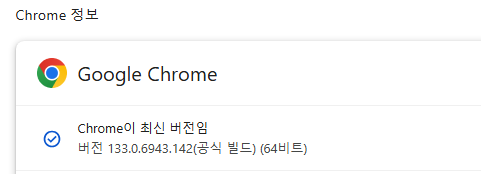 |
| TeamsApp | 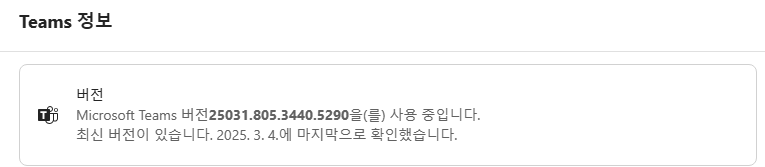 |
- Custom Policy Settings for Windows and Document Security
- ZoneIdentifier usage On/Off Windows settings (registry) should be set as follows.
- Registry path: HKEY_CURRENT_USER\Software\Microsoft\Windows\CurrentVersion\Policies\Attachments
- Registry Value:SaveZoneInformation : 2 (or the item should not exist for the document conversion function to work during download)
| SaveZoneInformation value | Zone Identifier (MoTW) Save Status | Security Warning Display Status (Generally) |
|---|---|---|
| 1 (Enabled) | Not saved | Not displayed |
| 2 (Disabled/Not Configured) | Storage | Displayed |
- Document Security Custom Policy
- DS_NOT_USE_SENDLOG_ZONE_IDF Custom Policy 0 or Policy Not Used (Removed)
- If the above custom policy is set to 1, the ZoneIdentifier will not be registered in the downloaded document file. (SaveZoneInformation: set to 1)
- The cloud download document conversion feature operates through hooking at the time of ZoneIdentifier registration.
- DS_NOT_USE_SENDLOG_ZONE_IDF Custom Policy 0 or Policy Not Used (Removed)
Check detailed reasons for failure in case of conversion failure
1. Overview
This is a feature that allows users to directly check which policy and reason caused the conversion to fail for documents that are blocked by policy during the document conversion process.
Previously, only a simple failure message was displayed in case of conversion failure, making it difficult for users to identify the cause. However, this feature allows for the provision of evaluation results by policy and localized reasons, enabling users to perform self-diagnosis.
2. Operation Flow
- The user executes the document conversion task.
- When the conversion is complete, the success/failure status for each document will be displayed in the conversion results list.
- exposed in the failure document**[View Details]**Clicking the button will display the detailed modal for the reason for failure.
- In the modal, you can check the evaluation results of the policies applied to the document in order of priority.
3. Conversion Result List
After performing the conversion task, visually distinguish and display the success/failure status for each document in the result list.
| User Screen | content | Note |
|---|---|---|
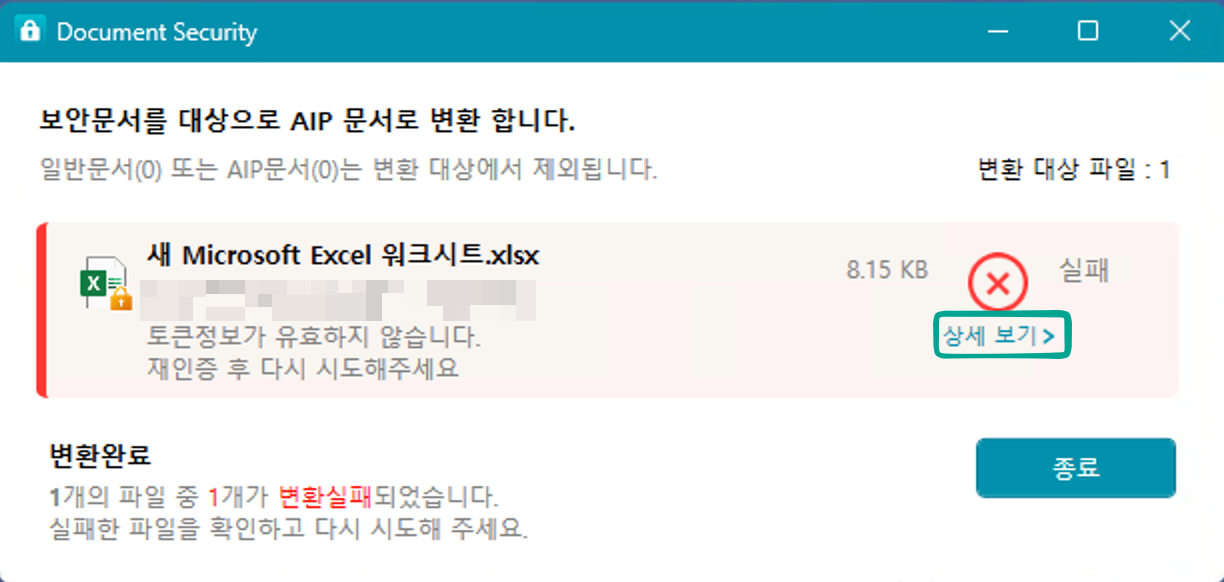 | to the right of the failure item**[View Details]**Button Exposure | Limited to policy-based failure items |
4. Failure Reason Detail Modal
Failure Document's**[View Details]**When you click the button, a modal will be displayed where you can check the policy evaluation results for the document.
4.1 Policy List
- List of policies applied to this documentpriority 순Sort and display it.
- Each policy is basicFolded stateIt is indicated as , and you can click to expand and check the detailed evaluation results.
- The policies that determine the conversion results are highlighted separately for user identification.
4.2 Evaluation Results by Policy
When each policy item is expanded, the evaluation results of the next item are displayed step by step.
| Evaluation Criteria | Explanation |
|---|---|
| Condition | Matching conditions for policy application (file extension, path, user, group, etc.) |
| Excluded Condition | Matching criteria for exclusion from the application of the policy |
| Decision Factor | Factors that ultimately determine the application or blocking of the policy (e.g., label, classification result, etc.) |
4.3 Display by Match Reason (matchReason) Type
The UI is branched to provide clear guidance to users based on the type of matching reason returned as a result of the policy evaluation.
Conversion Progress Guide at Document End
1. Overview
In a structure where grade application and document conversion are performed together at the end of the document, if multiple files (about 10) are closed simultaneously, the tasks come in all at once and are processed sequentially (the others wait while one is in progress). Regardless of whether grade settings are applied or not, multiple tasks can accumulate just from the conversion alone.
This feature provides users at this point with**Which file is being processed and how far along is it?**It guides through a separate notification window to visualize so that the user does not attempt other tasks or arbitrarily terminate while processing.
2. Feature Summary
When you close the user task process (such as Office), a conversion progress notification window will automatically appear.
- Guide Window Configuration
- Title: Dynamic transition between in progress / completed two states
- Target file list: File line 1 = 1 document. File format icon + file name + status badge
- Status Badge: Converting (spinner) / Success (green check) / Failure (red exclamation mark) 3 types
- Guide text: During the process, a message "Program execution and document opening are temporarily restricted during conversion" will be displayed. If there are any failed items, a separate notification message will be shown.
- Help link: "Need help?" button — Open external URL configured by the administrator
- Confirm Button: Deactivate during progress → Activate when all tasks are completed + Automatically close after 5 seconds
- Multilingual support for 6 languages (KOR / ENG / JPN / CHN / DEU / RUS)
- Even when multiple PIDs are terminated simultaneouslyAccumulate all items in a single host window(Prevent multiple pop-up windows)
- If all task completion signals do not arrive within a certain period, the notification window will automatically switch to a completed state and close itself (prevent permanent display).
3. Operation Flow
- The user closes the last document of the work process, such as Office, or ends the process.
- Start conditional policy evaluation for each document that the client detects as closing.
- Before the first policy evaluation — Show dialog (if a dialog is already displayed, accumulate items)
- When each file processing is complete — the Badge for that item changes from "In Progress" to "Success" or "Failure"
- When all policy processing of the closing process is completed — change the title of the notification window to completed status, activate the confirm button.
- 5 seconds later — The notification window will close automatically (users are also allowed to close it directly with the confirm button)
4. User Screen
| status | screen |
|---|---|
| In progress of conversion | 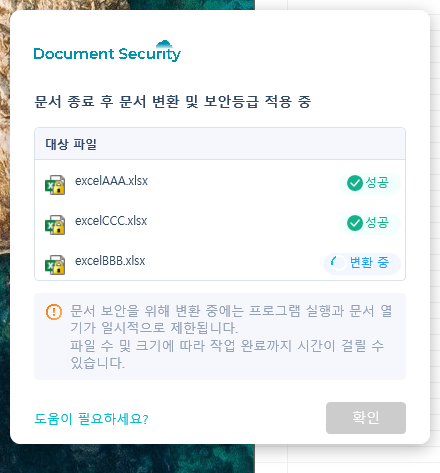 |
| Conversion complete | 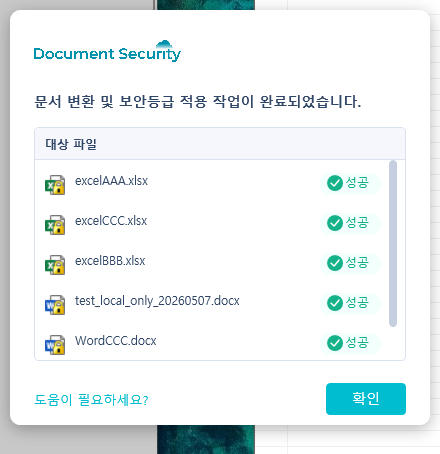 |
During the process, the confirm button is disabled, preventing the user from closing the window before the task is completed. Once all items are finalized, the confirm button becomes active and will automatically close after 5 seconds.
5. Resource Information —DSRes*.iniadditional key
Common to 6 country resource files[DocCloseProgress]Adding a section. Each key is first looked up in the INI file corresponding to the system locale of the operating environment, and if the key is empty or the INI is an older version, the dialog will safely fall back to the English default.
| key | Purpose | Note |
|---|---|---|
TITLE_IN_PROGRESS | Notification Window Title — In Progress Status | For example) "After document completion, applying document conversion and security level" |
TITLE_DONE | Notification Window Title — Completion Status | For example) "Document conversion and security level application completed" |
INFO_IN_PROGRESS | In-progress notification message — 2 sentences (\nseparated by | 1. Notice that program execution and document opening are temporarily restricted. 2. Notice that it may take time depending on the number and size of files. |
INFO_FAILED | Message displayed when there are failed items upon completion | Example) "There is a failed file. Please try again later or contact the administrator." |
BUTTON_CONFIRM | Confirm Button Label | Example) "Confirm" |
BUTTON_HELP | Help Button Label | For example) "Do you need help?" |
STAGE_CONVERTING | Item Badge — Converting Text | For example) "Converting" |
STAGE_SUCCESS | Item Badge — Success Text | Example) "Success" |
STAGE_FAILED | Item Badge — Failure Text | Example) "Failure" |
HELP_URL | "Need help?" The external URL that opens when the button is clicked. | Language agnostic. Administrator configuration |
- When a key is missing: Fallback to the English default for that key only (use INI values for other keys)
- INI itself is an old version (
[DocCloseProgress](No section itself): The entire dialog box is displayed in English by default, and the conversion and policy processing actions themselves are not affected.
6. Disable Notification Window Option
In cases where the customer is unable to notify users of UX changes in advance due to circumstances, for environments where the notification window should not be displayed,Control display status with policyYou can do it.
Hide the window**Document conversion, security level application, and log transmission are performed as is.**It works. Only the screen does not appear.
6-1. Related Custom Policies
| item | value |
|---|---|
| ID | DS6_UI_OPTION |
| TYPE | EDIT (value is JSON) |
| key | docCloseProgress |
| value | show(Basic) /hide |
DS6_UI_OPTIONThis is a policy that gathers the display options of DS 6.0. To hide the guide window, set it as below and apply the policy.useis specified.
{"docCloseProgress":"hide"}
DS6_UI_OPTIONThere is already another key (e.g., security level tab display optioncsoPropSheet) is registered.Add a key without overwritingYou must do it. The two keys do not interfere with each other.
{"csoPropSheet":["levelName"],"docCloseProgress":"hide"}
6-2. Value Judgment Rules
| Policy Value | Guide Window |
|---|---|
hide / Hide / HIDE | Do not display(case insensitive) |
show | display |
| Policy Not Registered · Policy Not Used | Display (Basic Operation) |
No key · Value type error · Unknown value (e.g:off) | display |
- value is
hideonly hide when confirmed,Display in all other casesIt is to ensure that the guidance does not disappear when the policy is not read or the value is incorrect. - Leading and trailing spaces are not allowed. Case sensitivity is ignored.
- Since policy values are not cachedWithout restarting the agentThe following will be reflected from the end of this document.
6-3. Scope · Constraints
- The target application is the conversion progress notification window at the end of the document.AllIt is. Step-by-step selection such as hiding only in-progress notifications and keeping completed notifications is not supported.
- Policy is in the admin console.**Both value input and usage specification must be done.**It will be delivered to the client. If only the value is stored and usage is not checked, it behaves the same as having no policy.
- If the notification window is hidden, there will be no screen indicating the progress of the conversion, so in an environment where multiple files are closed simultaneously, the user may not be aware of the waiting state. Since this conflicts with the purpose of the introduction in § 1 Overview, whether to apply it depends on the UX judgment of the client company.
📌 Supported Version:
SCPD_DS365.dll/SCPD_DS36564.dll6.4.0.4Done. In the previous version, even if the policy was set, the notification window always appeared.
White List Document Conversion
According to the whitelist policy1:1 mappingThis is a feature for converting documents in a way. DS 6.0 ENT'sappAuthWorks only in mode.
1. Overview
defined by the operatorsource → targetConversion is only allowed for documents registered in the mapping policy. Conversion of documents not registered in the policy isBlock AllIt will be set to custom policy.
2. Related Custom Policies
| item | value |
|---|---|
| ID | DS_MIP_DOC_CONV_WHITE_LIST |
| TYPE | EDIT |
| Policy Value Format | TARGET_DOC_TYPE:ID|DEST_CONVERT_DOC:ID |
3. Policy Format Description
TARGET_DOC_TYPE— Type of the original documentDEST_CONVERT_DOC— Type of document to be convertedID— Document Identifier (MIP Label ID, Grade Document ID, Category Document ID, etc.)
4. Document Type (Type)
| type | Explanation |
|---|---|
MIP | Document labeled with MIP |
MAC | Category (MAC) Document |
GRADE | Document with a designated grade |
DAC | Personal Document (ID can be omitted — converted to the personal document of the logged-in user) |
5. Policy Examples
Example 1 — ABCDMIP document with label ID to grade document IDGRADEID0001Allow Roman conversion:
MIP:ABCD|GRADE:GRADEID0001
Example 2— Category Document IDMAC000002MIP label IDEFGHAllow Roman conversion:
MAC:MAC000002|MIP:EFGH
Example 3— Simultaneous application of two policies (semicolon;(separator):
MIP:ABCD|GRADE:GRADEID0001;MAC:MAC000002|MIP:EFGH
6. Constraints
- Since it is a WhiteList method, the conversion of all documents not registered in the policy is blocked.
- In DS 6.0 ENT, the Linker feature is used when directly converting to personal, grade, and category documents, allowing the converted documents to be displayed with the Linker document icon.
Endpoint Pre-conversion When Uploading Files Using the Teams Copilot Tab
1. Overview
Microsoft Teams Desktop App'sCopilot tabWhen the user attaches a security document via file upload / drag and drop / paste method,Pre-conversion on the user's PC (Endpoint) sideThis is a feature that delivers after doing it to Teams.
1-1. The reason this feature is needed
This feature is fundamentally**The Teams Copilot prompt cannot directly read the contents of DRM protected documents.**was developed to solve the constraints. If you attach DRM secure documents in the Copilot tab, Copilot will not recognize the content of the document, resulting in broken answers or failed queries.
To avoid this, this feature allows users to attach security documents at the time they are in the Copilot tab.**Pre-conversion to a format that Copilot can read on the user's PC just before sending to the cloud.**It will also resolve the following two issues that occurred due to conversion delays.
- Cloud-side conversion delay due toCopilot query error
- Before the conversion is complete, Copilot partially reads the contents of the security document.The phenomenon of broken responses
1-2. The conversion direction can be freely set with conditional policies.
The conversion direction of this function isIt is not fixed.. The operator can freely decide how to configure the ZTCAP conditional policy.
- Standard Scenario — DRM → MIP Conversion: Convert DRM-secured documents that Copilot cannot read into documents with MIP (Microsoft Information Protection) labels. The main use case for this feature.
- Example — MIP → DRM Conversion: According to the operational policy, the scenario of attaching MIP documents to Copilot and converting them back into DRM secure documents for delivery. If the transformation direction item of the ZTCAP policy is configured that way, it is possible.
- Other conversion directions supported by ZTCAP (e.g., general documents → DRM, etc.) can also be applied in the same policy configuration manner.
In other words, this feature is**"Perform pre-transformation at the Endpoint when attaching the Copilot tab."doingTrigger·Infrastructure**provides,Actual conversion directionThe administrator freely decides the transformation direction item of the ZTCAP conditional policy.
1-3. Relationship with Download Conversion
This feature performs pre-conversion on the Endpoint side during cloud download.Cloud Download Document Conversion FeatureofUpload Direction Symmetry Plateand reuses the same conditional policy (ZTCAP) infrastructure and the SCRA·SCPD module structure.
📌 Summary: When you attach a security document to the Teams Copilot tab, Teams will only upload the results automatically converted on the PC according to the ZTCAP conditional policy just before sending it to the cloud. The standard usage is DRM → MIP conversion, and depending on the policy configuration, other directions such as MIP → DRM are also possible.
2. Related Custom Policies
This feature isTwo custom policiesWorks with. Both are set in the policy management screen of the SHIELD DRM admin page. The detailed policy value of HOOK_LOAD_DYNAMIC (module injection string) is managed in the conversion details.
2-1. DS_MIP_INIT.CopilotDocuConv— Copilot tab·Path Identification Enhancement Policy (Optional)
This feature measures the window caption pattern of the Teams Copilot tab at the time of shipment.Copilot | Microsoft Teamsetc) and user document path pattern (excluding system folders)Built into the clientare being done. However, the captions in Teams may change in future updates, or the client company may need to use or block specific non-standard paths.Reinforcement only through policy without client redistributionThis policy has been implemented to enable you to do so.
| ID | DS_MIP_INIT(Existing policy'sCopilotDocuConvkey) |
|---|---|
| TYPE | JSON |
| Policy Value Format | DS_MIP_INITas a sub-object of JSONCopilotDocuConvAdd |
| Application Method | Union— The fallback value embedded in the client is the pattern specified in the policyadditionalOkay. The operator only needs to specify the new pattern to be added (no need to duplicate the fallback). |
Policy Value Example (JSON):
{
  "CopilotDocuConv": {
    "captionPatterns": [
      "Copilot | Microsoft Teams",
      "Copilot 그룹 채팅 | Microsoft Teams"
    ],
    "excludePathPatterns": [
      "c:\\users\\public\\share-temp\\"
    ]
  }
}
captionPatterns: List of window caption patterns that EnumWindows must find when the Copilot tab is activated. Partial matching.excludePathPatterns: User document path in this conversionList of path prefixes to exclude. System Folder(c:\windows\/c:\program files) is always excluded and cannot be changed by policy.
📌 Action when policy is not set: It works normally with only the client built-in fallback value. This policy should only be set when caption or path change response is needed.
⚠️ Korean Pattern: Policy data will be correctly interpreted with UTF-8 encoding even if it contains Korean. Fallback processing is applied to ensure it works in an ANSI (CP949) encoding environment at the time of shipment.
3. Conditional Policy Event Definition
This feature is for the conditional policy (ZTCAP) engine of SHIELD DRM.A new event triggeradds.
| item | value |
|---|---|
| Frontend (Admin UI Label) | Upload Files with the Teams Copilot Tab |
| Backend (Event Key) | UploadFile_ToTeamsCopilot |
| Explanation | Events that occur when a file is uploaded to the Copilot tab in the Teams desktop app. Whether it is the Copilot tab is determined on the client side based on the window caption. |
UI Layout:
[조건부 정책] > [Endpoint] > 정책 등록 > 정책 기본 정보 > 문서 이벤트 > CloudIt will be displayed as a single checkbox item under the category. ExistingCloud에서 파일 다운로드It is at the same level as the item.
Document Events > Cloud
├─ Download File from Cloud              (Existing, DownloadFile_FromCloud)
└─ Upload File to Teams Copilot Tab     (New, UploadFile_ToTeamsCopilot)
💡 A separate URL list management tab will not be introduced. The identification of the Copilot tab is performed by the client's internal logic (window caption + user path + three-layer defense of revalidation just before conversion).
4. Ztcap Policy Related
4-1. Example of decisionFactors queried to ZTCAP from Endpoint during function operation
The form of JSON that the client queries the ZTCAP engine at the time of attaching a single docx DRM secure document with the Teams Copilot tab.
{
  "decisionFactors": [
    {
      "category": "document",
      "target": {
        "info": {
          "ext": "docx",
          "zoneIdentifier": ""
        },
        "type": "ds"
      }
    },
    {
      "category": "storage",
      "target": {
        "info": {
          "folder": "%USERS%\\Documents"
        },
        "type": "local"
      }
    },
    {
      "category": "fileEvent",
      "target": {
        "info": {
          "event": "UploadFile_ToTeamsCopilot"
        },
        "type": "local"
      }
    }
  ]
}
📌 Difference with the download path: Unlike download conversion, this upload conversion isOriginal Security Document of Local Diskfor the target
zoneIdentifierThe value is generally empty,category=documentoftypeisds(DRM Security Document) ornormal/mipis.
4-2. Precautions When Setting ZTCAP Policy
⚠️ When downloading, it is necessary to share common execution policies in case of conversion policies and bundling.
decisionFactorsoffileEventkeyUploadFile_ToTeamsCopilotWowDownloadFile_FromCloudSpecifying together is allowed on the ZTCAP engine (event multiple selection). However, what can be bundled in one policy are two events.Common Execution Policy(For example: sharing the conversion from DRM to MIP). If the enforcement policy is different, register it as a separate policy.decisionFactorsofdocument.target.typepolicy value =ds(DRM Security Document) ornormal/mipselected according to operational requirements. Unlike downloading,dsAvailable (The main scenario for this feature is converting local DRM documents to MIP).document.target.info.ext= List of target file extensions. This specifies the extensions supported by this feature (13 in total). See § 7.
ZTCAP Policy Example:
"category": "document",
"targets": [
  {
    "type": "ds",
    "use": true,
    "operation": "AND",
    "info": {
      "ext": ["pptx","ppt","pps","ppsx","pptm","xlsx","xls","xlsb","xlsm","docx","doc","docm","pdf"]
    }
  }
],
...
{
  "category": "fileEvent",
  "targets": [
    {
      "type": "local",
      "use": true,
      "operation": "OR",
      "info": {
        "event": ["UploadFile_ToTeamsCopilot"]
      }
    }
  ]
}
4-3. Default Included Policies When Setting ZTCAP Policy
This feature targets local security documents, so the cloud URL whitelist (*sharepoint.com*etc.) isNot needed. It is the key difference with the download conversion feature.
5. Application Method
The steps the administrator must take to activate this feature are as follows.
- Module Patch— Check if the module version that supports this feature is deployed on the user's PC (refer to conversion details for specific module and version).
- Custom Policy Settings —
HOOK_LOAD_DYNAMICpolicymsedgewebview2.exeCheck if the target includes 4 items (refer to the conversion details for detailed policy values). - (Optional) Caption·Path Reinforcement— If the Teams caption has changed from the shipping fallback or if exclusion of non-standard paths is necessary,
DS_MIP_INIT.CopilotDocuConvsets up (§ 2-1). - ZTCAP Conditional Policy Registration— Admin Page
Teams 코파일럿 탭으로 파일 업로드Register a new policy with an event and specify the transformation action and label (§ 4). - Restart the Teams app after waiting for the policy update on the user PC.— Teams app is new
HOOK_LOAD_DYNAMICTo recognize the policy, a restart of the Teams App is required.
6. Summary Table of Actions by Policy Combination
This feature has three policies (HOOK_LOAD_DYNAMIC / ZTCAP UploadFile_ToTeamsCopilot / DS_MIP_INIT.CopilotDocuConv) operates as follows depending on the combination of __PH_0__.**The rows marked in bold are the standard configuration for this feature to operate correctly.**is.
| # | HOOK_LOAD_DYNAMIC(Module Injection) | ZTCAP UploadFile_ToTeamsCopilot(Conversion Policy) | DS_MIP_INIT.CopilotDocuConv(Caption·Path Reinforcement) | Operation Result |
|---|---|---|---|---|
| 1 | ✅ Settings | ✅ Registration | (omitted) | ✅ Normal operation— Teams Copilot tab attachment → Pre-conversion → MIP document upload → Copilot normal response |
| 2 | ✅ Settings | ✅ Registration | ✅ Settings | ✅ Normal operation— Same as above, recognizing caption and path addition patterns. |
| 3 | ❌ Not set | ✅ Registration | (Non-related) | ❌ Not working — The hook module is not loaded in Teams WebView2, so the event itself does not occur. |
| 4 | ✅ Settings | ❌ Unregistered | (Non-related) | ⚠️ Partial Operation — The endpoint detects the event but has no transformation policy to apply, so no transformation is performed. It is uploaded as is. |
| 5 | ✅ Settings | ✅ Registration (Extension Limit) | (Non-related) | ⚠️ Select Action — ZTCAPextConvert only the extensions included. Extensions not included should be uploaded as is. |
| 6 | ✅ Settings | ✅ Registration | ❌ Caption pattern changed (policy not reinforced) | ⚠️ Temporary Malfunction — Immediately after the Teams update changes the captions, there may be a failure to identify the Copilot tab, resulting in no conversion. Resolved by policy reinforcement (§ 2-1) |
| 7 | ✅ Settings | ✅ Registration | (Non-related) | ⚠️ Temporary Guard Action — The same path that failed to convert within 30 seconds will be blocked from retrying for 30 seconds (§ 8-3). Automatic recovery after 30 seconds. |
💡 After changing the policy combination, the user must restart the Teams App on their PC for some changes to take effect immediately.
7. Supported Extensions
The extensions supported as conversion targets by this feature are as follows:13 itemsis. The operator of the ZTCAP policydocument.target.info.extOnly the extensions included in the list must be specified for the conversion to be performed.
| Classification | extension |
|---|---|
| Word Series | .docx, .doc, .docm |
| Excel Series | .xlsx, .xls, .xlsb, .xlsm |
| PowerPoint Series | .pptx, .ppt, .pps, .ppsx, .pptm |
.pdf |
📌 This list is shared memory within the client(
shmSupportExt) is managed by the specifications, and the operator cannot change it arbitrarily (client patch required when extended).
8. Transformation Operation Characteristics
8-1. Conversion Time
- In-house measurements: Teams Copilot tab attachment point to completion takes about __PH_0__2.8 seconds(Log capture ON environment standard).
- Operating Environment: In a general user environment where log capture is OFF, it is shorter than the above measurement and is at a practically acceptable level.
- After attaching, the progress status will be briefly displayed in the Teams UI, and then the Copilot response will start normally.
8-2. Temporary File Management
This feature saves the conversion results to a secure temporary folder and then delivers them to Teams. Temporary files are automatically cleaned up according to the following rules.
- FIFO Queue Method: The converted temporary file is up to5 itemswill be preserved in the queue, and when the limit is exceeded, from the oldest item2 eachIt will be automatically deleted.
- PC Shutdown / Teams App Shutdown Timing: This function module cleans up the remaining items in the queue in bulk when it is normally detached (DLL_PROCESS_DETACH).
- Therefore, immediately after the conversion, Copilot does not delete the temporary file right away to recognize the temporary file correctly, and in the case of multiple file attachments, they are safely organized in order after being preserved for a certain period of time.
8-3. Retry Guard on Temporary Failure
If a specific file conversion temporarily fails (e.g., external SDSEnc environment issues, etc.),Block conversion retries for the same file on the same path for 30 secondsdoes.
- After 30 seconds, automatic retry will be possible.
- This guard action simultaneously prevents infinite retries due to environmental timing issues and the risk of exposing the DRM original.
- If a user reattaches the same file while the conversion is blocked, it will not be uploaded as is and will follow the conversion block flow.
9. Main Flow
9-1. Administrator Policy Registration Flow
- Access the SHIELD DRM admin page.
- Log in with an account that has administrator privileges.
- LNB Menu
조건부 정책→ SubmenuEndpointSelect. 정책 등록Click the button.문서 이벤트in the itemCloud > Teams 코파일럿 탭으로 파일 업로드Select.- Target Document · Members · Document Execution Policy(
MIP 로 암호화+ Configure existing conditional policy items such as label selection). - Save the policy and wait for the client PC side policy update.
9-2. User Attachment Action Flow
- The user launches the Teams app and activates the Copilot tab.
- Attempts to attach the security document using one of the methods: file upload / drag and drop / paste.
- The endpoint is as follows3 Line DefenseDetermines whether the feature is applicable.
- 1st step — Check if the file path is the user's document path + if the extension is a supported extension (fastest filter)
- 2nd Step — Check if the Teams Copilot tab is active (Windows caption check)
- 3rd Stage — Re-validate the same conditions just before the transformation (Prevent Race)
- 3 If all are passed, query the ZTCAP policy to determine whether the transformation action is performed.
- If determined to be a target for conversion, it decrypts the security document and creates a temporary file with the MIP label applied.
- Teams sends the converted result temporary file to the cloud instead of the original.
- Copilot recognizes the converted MIP document correctly and responds to user queries.
10. Constraints
- Teams web upload not supported: Teams web exposes the same URL for all tabs, making it impossible to identify the Copilot tab. This feature is excluded from the scope.
- Teams Chat / Channel Board Upload Not Supported: Outside the first scope. Future separate events (
UploadFile_ToTeamsChat,UploadFile_ToTeamsChannel) can be separated. - Mobile / iOS / Android Teams app not supported: This feature is limited to Windows Endpoint.
- Re-upload Block (PDF): If a PDF that has been uploaded once is re-uploaded as a secure document, it will be blocked by Teams itself, and this feature cannot intervene.
- Copilot Tab Identification Dependency: If the Copilot tab caption pattern changes due to a Teams update, this feature may temporarily not work. In this case
DS_MIP_INIT.CopilotDocuConvYou can add new caption patterns through policies to respond to operations without redeploying the client. - MIP Certification Dependency: If the application of the MIP label fails to obtain the Teams user authentication context, the conversion fails. In this case, a 30-second retry guard is activated, and it automatically normalizes after authentication recovery.
- Unsupported browsers other than Edge / Chrome: Teams uses WebView2 (based on Edge) internally, and other browsers are not related to this feature.